
Hidden Functions, Shortcuts & Everyday Productivity Boosts
Siemens NX Tips and Tricks
Work Faster & Smarter in NX
What you will learn
Find the assembly in windows
Change colour via expression
Create inner volume
Show center of gravity
Customer defaults
Administration your team
Step import-export
Multi-start trapezoid thread
Change language, and much more
All Lessons
Siemens NX Tips and Tricks Tutorial

tt-1
Since all files in NX have the same file extension, it seems impossible at first to distinguish between assemblies and

tt-2
With coordinate systems defined as anchors, you can significantly speed up the installation of components. Coordinate systems can be converted

tt-3
Products with identification colours have the same geometry, but different colours. There are many possible solutions for this, but the

tt-4
Do you have complex parts and need the inner volume? It’s easy with the right selection. Start the Delete command,

tt-5
Normally, the variables change the result in a calculable way. But if the constraints are very complex, the desired result

tt-6
The center of gravity (center of mass) for a model or assembly can be created associatively using the Measure command.

tt-7
And the best of all: this works with a parametric model as well as with a non-parametric model (step). And

tt-8
The Replacement Assistant allows you to replace the sketch and transfer all ID-numbers from the old curves to the new

tt-9
Create and save new shortcuts. Make a list of all the existing shortcuts in NX. Also included is a list

tt-10
Favorites can be used to save settings in the menus. The saved settings can be called up later in the
tt-11
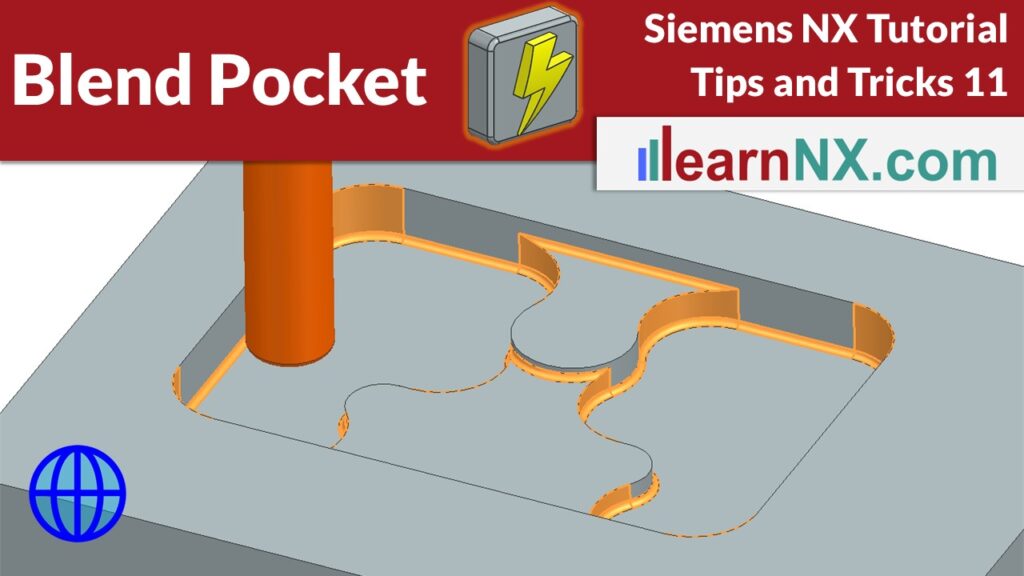
The Blend Pocket command helps to quickly create radii that are suitable for production in a milling pocket. The command

tt-12
Manual dimensions on drawings can result in very high costs, but it is quite easy, to check a drawing for